Test your frames without leaving Figma.
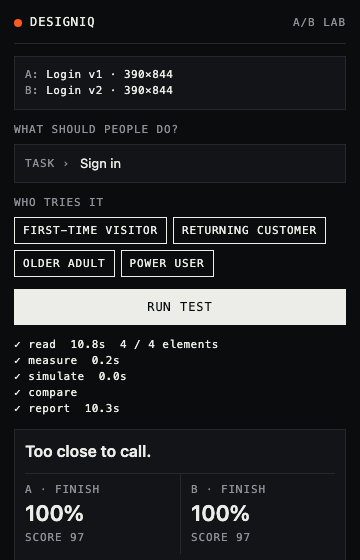
Select two frames, type the task and press Run. The result opens in DesignIQ.
What it sends
A PNG of each frame, plus the layer list Figma already knows: every button, field, link and block of text, with its exact position and text. DesignIQ skips reading the screenshot and only works out which steps the task needs, so nothing is guessed from pixels.
The frame size sets the device: frames 500 px wide or narrower run as a phone. The left frame is A, the right one is B.
Name layers for better results
Layers called Button, Input, Checkbox, Link or Icon are read as exactly that. Anything with a prototype interaction counts as clickable. An unnamed frame with one short label and a fill is treated as a button.
To try it straight away, run Create sample frames from the plugin menu. It draws two versions of a sign-up screen with every layer named.
Whole flows
A version can be several screens in order, like the three screens of this sample checkout. The website runs flows today and shows how far people got; selecting a whole prototype flow in the plugin is next.
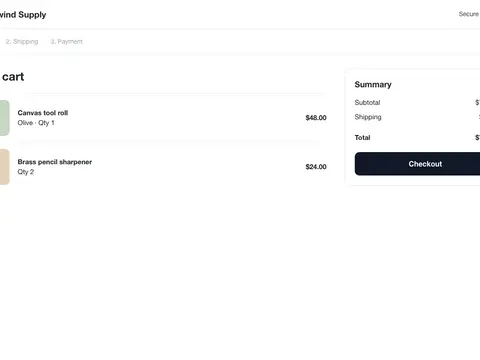 1. Cart
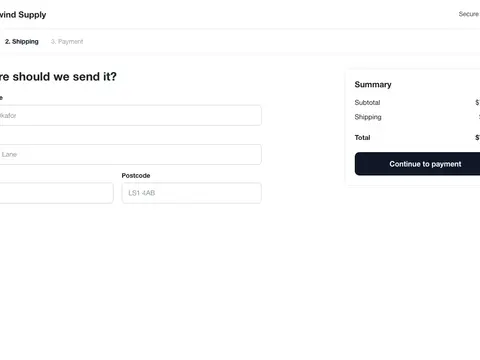 2. Shipping
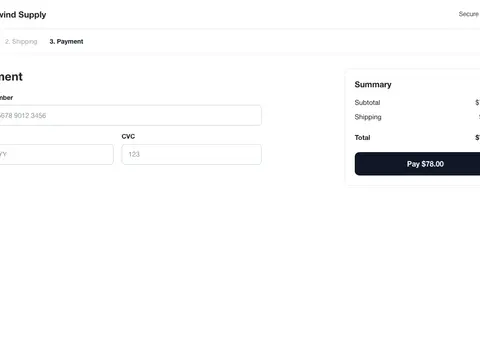 3. Payment
Install
- Download the plugin from the project’s repository: it is the
figma-pluginfolder. - In Figma desktop, open Plugins, then Development, then Import plugin from manifest.
- Pick
manifest.jsonfrom that folder. The plugin then appears under Plugins, Development, DesignIQ.
During the beta the plugin talks to a DesignIQ server running on your machine.